Zoom plans and setup
Get help selecting, purchasing and connecting a suitable Zoom plan for your live classes.
 Learn. Teach. Connect.
Loading page...
Learn. Teach. Connect.
Loading page...

Choose one of the six topics below, and we will guide you to the right account, feature, tutorial or app in a few simple steps.

Create a free student account, sign in, or learn how classes and lessons work.
Create a teacher account, explore teaching tools and compare plans with simple step-by-step guidance.

Complete each step below. Your progress stays inside this guide.

Choose practical services from Sipdora and our supported providers. We confirm availability, scope and any separate cost before work begins.

Request one service or combine several. Our team will review your needs and explain the next steps clearly.
Get help selecting, purchasing and connecting a suitable Zoom plan for your live classes.

Choose a messaging package and configure supported class, payment and account updates.
Ask Sipdora to organize lessons, recordings, notes, classes and day-to-day LMS content.
Build a professional website for your teaching brand, academy or educational institute.

Request attractive class flyers, announcement artwork and social media graphics.

Get help enrolling students, checking account details and placing learners in the correct class.
Prepare class schedules, joining details and supported live-session workflows.

Send recordings and lesson details for uploading, organizing and publishing in your LMS.
Polish selected lesson media, promotional videos, thumbnails and profile images.

Improve your public teacher profile, presentation and consistent visual identity.

Request campaign setup, audience guidance and creative support for selected promotions.

Move supported learning content into Sipdora and request additional cloud storage when needed.

Configure supported card and bank-transfer payment options for student purchases.

Prepare your online store for eligible classes, courses and digital learning products.
Request focused help for configuration, troubleshooting and supported platform improvements.
Plan teacher seats, student capacity, content structure and launch support for a larger organization.
Use this shared demo account to explore classes, student management and teaching tools before you register.
demo-teacherDemo@2026Enter your name, and we will open WhatsApp with a short checklist so our team can prepare your account.
Learn how Sipdora works before you create an account.
Sipdora Online is a Sri Lankan LMS that gives teachers, students, academies and training centres one simple place to teach, learn and grow.

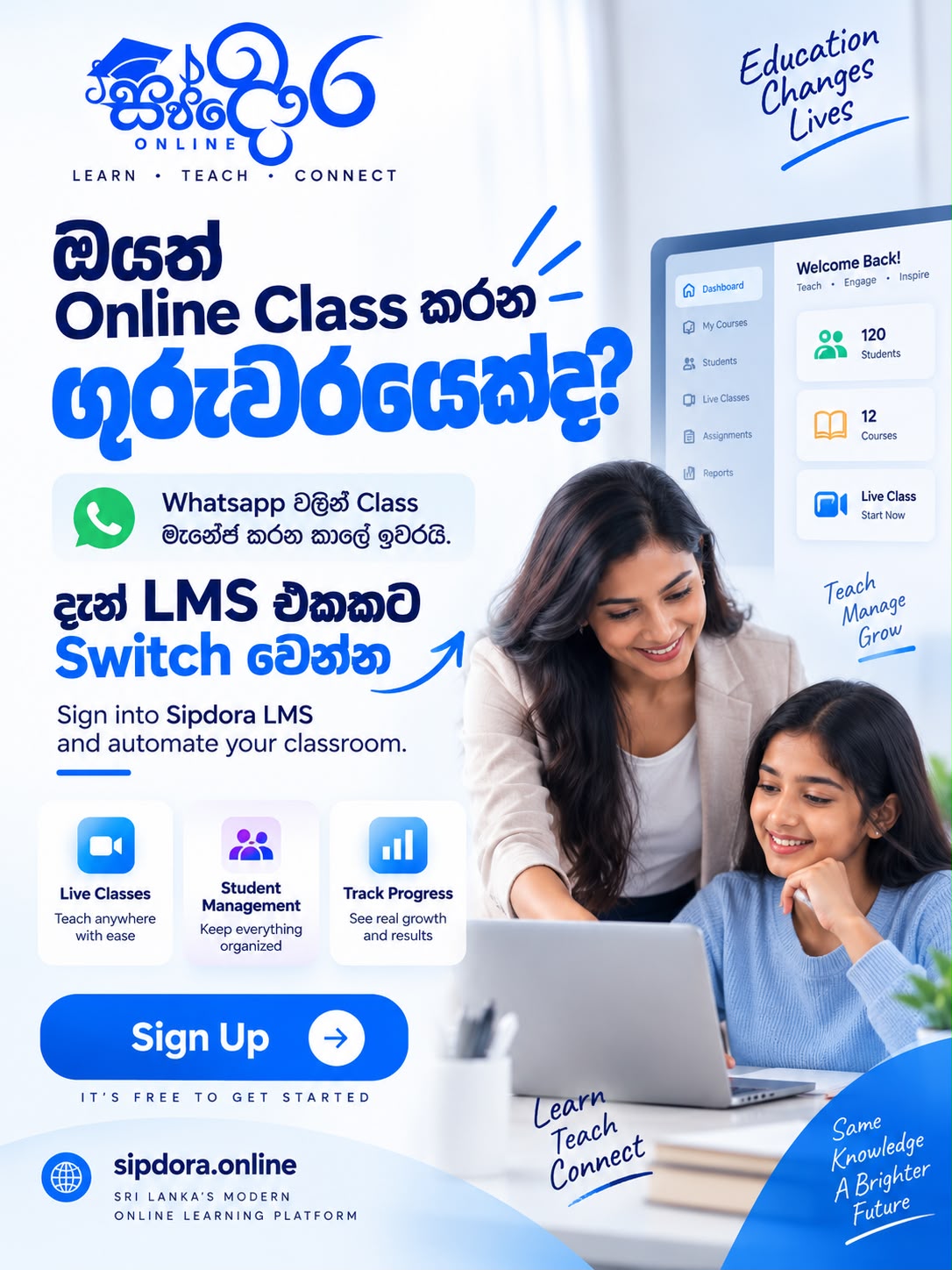
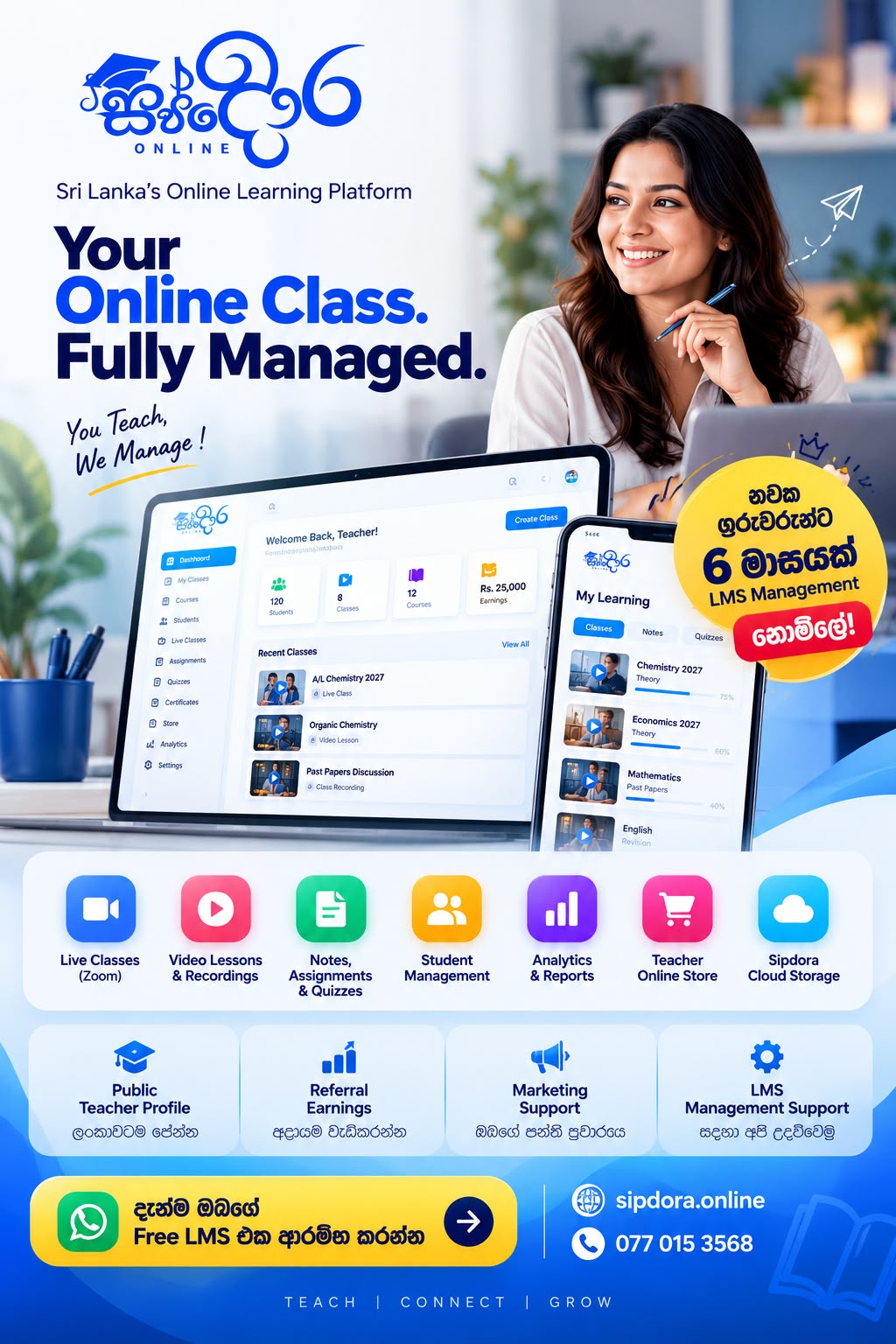
Teacher and student dashboards, a lesson builder, an Android app and an iOS web app keep the entire learning journey connected.
Students can easily access video lessons, notes, attachments, exams, quizzes, attendance, classes and courses.
Teachers can create classes and courses, manage an online store and public profile, review earnings and student analytics, and earn referral income.
Sipdora Cloud, automatic Zoom class imports, marketing support and LMS management tools help reduce your daily administrative work.
Eligible new teachers receive free LMS setup assistance for the first two months. Selected promotions may extend this support for up to six months.
Choose the plan that suits your classroom. Once we receive the required details, our team can prepare your teacher account within one working day.
Open an answer or watch its video guide without leaving this page.
Sipdora Online is a Sri Lankan learning platform that brings classes, courses, lessons, communication and teaching tools together in one place.
Choose “I am a student,” select “Create a student account,” and complete the secure registration form.
Choose “I am a teacher,” review the available options, and select “Create my own account.”
Email verification helps protect your account and ensures that important account and learning updates reach you.
Explore the available classes, choose the teacher and class that suit you, and follow the enrollment and payment steps.
Open Approvals or Enrollments in the teacher dashboard, review the request, and approve the student.
Open Explore Teachers, review each profile, and compare available classes and courses before you enroll.
A class may include scheduled or live sessions. A course arranges lessons and learning materials into a structured learning path.
Open Learning, choose your class or course, and select an available lesson. Access depends on your enrollment status.
Your enrolled class shows upcoming sessions. The Join button appears when the teacher makes a live session available.
Sipdora Online records supported lesson activity and marks progress according to the completion rules set for the class.
Yes. Open Messages, or select Message teacher from a supported class, course or teacher page.
A verified WhatsApp number can receive class and account updates when WhatsApp notifications are enabled.
Open Mobile apps in this guide and select Download for Android to get the latest published version of the Sipdora Online app.
Open the iPhone installation guide in Safari, tap Share, choose Add to Home Screen, and then tap Add.
Creating a student account is free. Teachers may set their own prices for individual classes, courses and learning products.
No. Start with the Free Teacher plan to explore Sipdora Online, and upgrade only when your classroom needs more capacity.
The testing plan includes up to 10 students, 1 class, 1 course, 1 store product, 500 MB storage, a public teacher profile, teacher and student dashboards, lessons, notes and quizzes.
No problem. Sipdora helps eligible new teachers organize recordings, notes, learning materials and class details free of charge for the first two months. Selected promotions may extend this support for up to six months.
Yes. Students can use one simple dashboard to access classes, video lessons, recordings, notes, quizzes and learning materials on a computer or mobile device.
Yes. Your shareable Sipdora teacher profile presents your information, classes and courses to students across Sri Lanka.
You can move from the Free Teacher plan to Pro Teacher, Academy Teacher or an Institute plan whenever you need more students, classes, courses, storage or team seats.
Available payment methods appear during checkout. Access is activated after the payment has been verified.
Certificate availability depends on the course and the teacher’s settings. Check the course details before you enroll.
Use the WhatsApp button in this guide. After signing in, you can also use the support and messaging options in your dashboard.
Watch these short guides here without leaving the Sipdora introduction.
Every teacher can start with Sipdora Online. Upgrade only when you need more students, storage or teaching tools.
A testing plan with up to 10 active students, 1 course, 1 live class, 1 store product and 500 MB storage.
For professional teachers: up to 200 active students, 10 courses, 10 live classes, 25 products and 50 GB storage.
For established teachers and academies: up to 1,000 active students, 30 courses, 30 live classes, 100 products and 200 GB storage.
For learning institutes: up to 5 teacher seats, 2,000 students, 30 courses and 200 GB storage.
For larger institutes: up to 10 teacher seats, 3,000 students, 50 courses and 400 GB storage.
For multi-teacher organizations: up to 20 teacher seats, 10,000 students, 100 courses and 600 GB storage.
Explore tools for teaching, student progress, automation, access and practical support. Availability can vary by plan, eligibility and requested service.

Try the Free Teacher plan first. The Pro Teacher plan is LKR 5,000 per month with clear limits and no hidden Sipdora platform fees. Optional services and external providers may have separate charges, which are confirmed before you proceed.
Build, organize and deliver a complete digital classroom.
Start on your own or ask the Sipdora team to help prepare your teacher account.
Create live classes, recorded courses and organized learning paths from one dashboard.
Arrange videos, notes and activities into clear topics and lessons.
Schedule live sessions with dates, times and joining information for students.
Publish recordings in a focused lesson experience with notes and attachments.
Create knowledge checks, quizzes and supported assessments for each learning stage.
Share assignments and keep student work connected to the correct class.
Keep PDFs, documents and supporting learning materials beside each lesson.

Understand every learner and keep the class connected.
Review supported lesson activity and completion progress for individual students.
See useful class-level learning signals and identify students who may need attention.
Record and review attendance for supported classes and sessions.

Follow supported lesson completion, quiz performance and assessment results.
Send supported class and account updates to verified WhatsApp numbers.

Keep relevant conversations connected to the learner and classroom.

Help students notice important class, lesson and account updates.
Give learners a clear dashboard for classes, recordings, notes and activities.

Use supported Tutor LMS Pro tools when the related add-ons are enabled and configured.
Release supported course content according to a schedule or learning condition.
Build structured learning paths that require an earlier course to be completed first.
Let prospective students preview selected lessons before enrolling.
Keep supported quiz, assignment and course grades organized for review.
Award supported course-completion certificates using enabled templates.

Review supported course, student, enrollment and earnings reports.
Bring supported assignments, quizzes and learning events into a clear calendar view.
Send configured learning and account emails for supported platform events.
Share course announcements and keep supported student questions connected to the course.
Add more than one instructor to supported courses when marketplace settings allow it.
Add supported documents, images, audio, video and archive files to course materials.
Move supported quiz content more efficiently with import and export tools.
Use supported H5P activities to create more interactive learning experiences.
Schedule supported Google Meet live lessons from the course workflow.
Enable supported social sign-in options for a quicker account experience.

Offer supported recurring course access or membership plans when configured.
Save time while managing access, content and teacher earnings.
Import supported Zoom cloud recordings into the lesson workflow with less manual work.
Connect supported Zoom sessions and request additional setup assistance when needed.

Use the Sipdora Online Android app or add the iPhone Web App to the Home Screen.

Access supported learning content from a phone, tablet or computer with an internet connection.
Eligible students can use supported local Work and Learn data packages for more affordable video access.

Supported security controls help discourage unauthorized account sharing and protect learning access.
Review supported sales, purchases and teacher earning details in one place.
Present eligible classes, courses and digital learning products through your online store.
Offer supported card payments and bank-transfer payment options during student checkout.
Support students who pay by bank transfer with a clear submission and verification process.
Keep supported student purchases and payment verification statuses organized for review.
Share your profile, classes and courses with prospective students across Sri Lanka.
Use clear video tutorials, written steps and help resources while setting up your classroom.
A responsive interface keeps common teacher and student tasks clear on mobile and desktop.

Choose a comfortable appearance for daytime or evening learning.
Bring teaching, learning, communication and progress together in one connected space.
Get practical platform help, plus optional creative and growth services.
Eligible new teachers receive complimentary setup and content-management assistance for their first two months.
Send a support request at any time. Response times depend on the issue and support channel.
Request ongoing content organization or LMS management when your workload grows.
Request promotional flyer design for classes, courses or announcements.
Request polished images for your teacher profile, lessons or promotions.
Request editing support for selected class recordings and promotional videos.
Ask for campaign setup or creative support for selected advertising projects.
Request a separate website project for your teaching brand or institute.
Discuss practical promotional support that fits your class and audience.
Download the Android app, or add Sipdora Online to your iPhone Home Screen.
Follow these steps first. Download the app only when you are ready to install it.
Open this page on the Android phone or tablet where you want to use Sipdora Online.
Use the button below to download the latest app package directly from Sipdora Online.
Open the downloaded file. If prompted, allow your browser to install this app, then return and continue.
When installation is complete, open Sipdora Online and sign in with your existing account.
Sipdora Online works as a Web App on iPhone. Add it to your Home Screen for quick, full-screen access.
Use Safari on the iPhone or iPad where you want to install the Web App.
In Safari, tap the Share icon at the bottom of the screen.
Scroll through the Share menu and select Add to Home Screen.
Keep the name Sipdora Online, tap Add, and then open it from your Home Screen.
You can continue with the written guide for now. The video will appear here as soon as it is published.
Open this page in Safari on your iPhone or iPad.